# Introduction

TallyCal is a free and simple tool to coordinate group scheduling. Users can create and share polls to find the best meeting time for an event. Most features do not require logging into an account, however to get the best experience, it is reccommended to create an account so all of your polls are easy to find. Additionally, TallyCal offers Pro features that require a [paid subscription](/account/billing).&#x20;


# FAQs

**How do I cancel my paid subscription?**

You can cancel your subscription from the [Billing portal](/account/billing).

**How do I reset my password?**

You can reset your password from your [profile page](/account/account-profile). If you are logged out and can't remember your password, you can reset it [here](https://go.tallycal.com/users/password).

**Where can I find a receipt for my payment?**

You can download all receipts on the [Billing portal](/account/billing).

**I lost the admin link for my poll. How can I get it back?**

If you send us a [message](/getting-started/contact-support) we will do our best to help you retrieve it.

**What is the maximum amount of participants a poll can have?**

Polls can have an unlimited amount of participants.

**How can I edit my poll submission later?**

If you created an account, head to your [dashboard](/account/dashboard), then open the poll. If you do not have an account, then go to the unique link that you were given when you first participated.

**Is TallyCal free?**

Most features are free on TallyCal. However, we do offer a few [paid features](/polls/advanced-settings) for power users.

**Do I need to create an account to use TallyCal?**

No, for most features as a participant or a host, you do not need to create an account with TallyCal.

**Is there a limit to the number of polls I can make?**

You can make an unlimited amount of polls.

**Is there a limit to the amount of timeslots a poll can have?**

Free users can have up to 15 timeslots per poll. Pro users can have unlimited.

**Is there a discount if I pay yearly instead of monthly?**

Yes, check out the [billing page](/account/billing) for more details.

**What are the advantages of creating an account?**

All of your data will be centralized in one location and you can retrieve and edit it easier later.


# Contact support

To contact support, you can send a message [here](https://go.tallycal.com/support).


# Create a poll

To get started creating a poll, click the button 'Create a poll' on the header of the TallyCal website.

<figure><img src="https://293280464-files.gitbook.io/~/files/v0/b/gitbook-x-prod.appspot.com/o/spaces%2F2TTFJW1M0rT912YzbsRT%2Fuploads%2Fi1QdpoPBsfRTLUd4hA6U%2Ftallycal_create%20a%20poll.png?alt=media&amp;token=0bf54e7e-574e-4ca6-9d78-fc25c7ecf4bd" alt=""><figcaption><p>Create a TallyCal poll</p></figcaption></figure>

**Event Title**

Add the name of your event or poll. This is a required field.

**Event Description**

Add a summary that describes the purpose of the poll for your participants.

**Video Conference Link**

If you would like to share the link to a virtual meeting, you can add the link here. This link will be public to anyone who views the page.

**Poll Type**

You must select which type of poll you would like to create. Once you publish your poll, you can no longer change the type.

With a [Yes / No poll](/polls/create-a-poll/yes-no-poll-settings), participants can select which predefined timeslots they can attend with a response of "yes", "if need be", or "no".

With a [heatmap poll](/polls/create-a-poll/heatmap-poll-settings), participants can select specific times that they are available on the days that you select.

With a [sign up poll](/polls/create-a-poll/signup-form-settings), the host can allow participants to sign up for specific timeslots or responsibilities. The host can limit how many participants can select each timeslot, and how many timeslots each participant can choose.

<figure><img src="https://293280464-files.gitbook.io/~/files/v0/b/gitbook-x-prod.appspot.com/o/spaces%2F2TTFJW1M0rT912YzbsRT%2Fuploads%2FQ1zy5zNcA00x3PC7J3HH%2Ftallycal_polls.jpg?alt=media&amp;token=7078299b-26f2-45db-99d5-4e1474ec0c34" alt=""><figcaption><p>Choose between Yes/No, Heatmap, or Sign Up</p></figcaption></figure>

At the bottom of the page, click the button 'Select timeslots' to move to the next step.


# Yes/No poll settings

Create a list of dates and times. Participants can select 'Yes', 'If Need Be', or 'No' for every poll option.

When you create a [Yes/No poll](https://tallycal.com/traditional_poll), you'll have the option to choose between showing times or just single days.

**Specify Times**

Turn on 'Specify times for each day' to choose times for your poll.&#x20;

The times you enter will be based on your current timezone on the browser you are viewing TallyCal with.

Under 'Select a time' you can choose the starting time for each option you will add to your poll. Then you can select the duration for each day you will add to your poll.

You can switch the view to show all times in 24-hour format, if preferred. By default, it will show the format saved to your [profile](/account/account-profile). If you are not logged in, the default will be 12-hour time format.

**Show days of week only**

You can choose to show the week day only on your poll options. This will not show a date. So if you choose Monday, March 13th as a poll option then your participants will only see Monday if you have this feature turned on.

<figure><img src="https://293280464-files.gitbook.io/~/files/v0/b/gitbook-x-prod.appspot.com/o/spaces%2F2TTFJW1M0rT912YzbsRT%2Fuploads%2FMnxVQATI7zzJ0cMr6ShH%2Ftallycal%20show%20day%20of%20week.png?alt=media&amp;token=3b793e45-a9ba-438d-900e-f014d996b776" alt=""><figcaption><p>Day of week only</p></figcaption></figure>

**Add dates to your poll**

After you select the start time and duration, you can choose days on the calendar grid below. When you click on a date, it will add an option to the list of poll choices at the bottom of the page. If you click that same date again, it will remove the choices for that date from the list at the bottom of the page.

**Adjust start and end time for a timeslot**

Once you have added your dates, you can adjust the time and dates for each option by clicking on them individually. This allows you to make a timeslot end on a different day than it started.

**Add additional timeslots to a date**

You can also add another timeslot to the same starting date. Simply press the "+" symbol next to the date. It will create another timeslot, using the 'start time' and 'duration' settings from the top of the page.

**Delete a timeslot**

You can press the 'Trash' icon next to a timeslot to delete it from your poll. However, if you delete a timeslot that has been voted on already in a published poll, you will lose that data for the timeslot, and will not be able to recover it.

**Add timeslots without times**

If you want your poll to offer full day options, without showing specific times, then simply turn off 'Specify times for each day'.

**Timeslot allowance**

You can add up to 15 timeslots per poll. If you are a TallyCal Pro user, you can add unlimited timeslots per poll.

<figure><img src="https://293280464-files.gitbook.io/~/files/v0/b/gitbook-x-prod.appspot.com/o/spaces%2F2TTFJW1M0rT912YzbsRT%2Fuploads%2FhoJaGnixxD6YoL0xUItM%2Ftallycal_yesnopolltimeslots.png?alt=media&amp;token=6809e324-1d61-4991-9c88-b07d6ff84c1e" alt=""><figcaption><p>TallyCal Yes/No Poll Timeslots</p></figcaption></figure>


# Heatmap poll settings

Create a grid with dates and times. Participants can click and drag across the grid 'paint' the time slots that they are available.

When you create a [Heatmap poll](https://tallycal.com/tallycal-poll-types/visual-grid), you can show a grid of many dates and times within the window you define.

**Choose a time window**

To choose a time window for each day in your heatmap grid, select a 'Start' time and an 'End' time. The Heatmap poll will show all times within this window, in 30 minute increments.

The times you enter will be based on your current timezone on the browser you are viewing TallyCal with.

You can switch the view to show all times in 24-hour format, if preferred. By default, it will show the format saved to your [profile](/account/account-profile). If you are not logged in, the default will be 12-hour time format.

**Add dates to your poll**

After you define your time window for each date, you can choose dates on the calendar grid below. When you click on a date, it will add an option to the list of poll choices at the bottom of the page. If you click that same date again, it will remove the that date from the list at the bottom of the page.

**Delete a timeslot**

You can press the 'Trash' icon next to a date to delete it from your poll. However, if you delete a date that has been voted on already in a published poll, you will lose that data for the date, and will not be able to recover it.

**Timeslot allowance**

You can add up to 15 dates per poll. If you are a TallyCal Pro user, you can add unlimited dates per poll.

<figure><img src="https://293280464-files.gitbook.io/~/files/v0/b/gitbook-x-prod.appspot.com/o/spaces%2F2TTFJW1M0rT912YzbsRT%2Fuploads%2FP7A3r9lzbv0WaBaMv77v%2Ftallycal_heatmappolltimeslots.png?alt=media&amp;token=a67afc59-ece0-430f-8480-28a0aa8b999d" alt=""><figcaption><p>TallyCal Heatmap Poll Setup</p></figcaption></figure>

**Exclude times**

You can select specific times within your range to block from participants. Simple choose which start times you want to remove from the poll and they will no be an option. This feature is only available for pro users.

<figure><img src="https://293280464-files.gitbook.io/~/files/v0/b/gitbook-x-prod.appspot.com/o/spaces%2F2TTFJW1M0rT912YzbsRT%2Fuploads%2FRQqWQkewem1Xn7sAwAIi%2Fheatmap%20block%20times.png?alt=media&amp;token=0878d59b-7e74-4599-a82e-db2ffb7e5f2e" alt=""><figcaption><p>Block times on Heatmap poll</p></figcaption></figure>

**Show days of week only**

You can choose to show the week day only on your poll options. This will not show a date. So if you choose Monday, March 13th as a poll option then your participants will only see Monday if you have this feature turned on.

<figure><img src="https://293280464-files.gitbook.io/~/files/v0/b/gitbook-x-prod.appspot.com/o/spaces%2F2TTFJW1M0rT912YzbsRT%2Fuploads%2FqNMv9p08rJnQ8vyMx3Sr%2Ftallycal%20show%20day%20of%20week.png?alt=media&amp;token=e3c7e593-baad-42fb-877f-b150c430c15e" alt=""><figcaption><p>Heatmap poll - Show day of week only</p></figcaption></figure>

**Participant Entry**

Participants can select their availability by individually clicking time slots or clicking and dragging down each column. Additionally, participants can click on a column header to select all options in a date, or they can click the button "Select all' to make themselves available for every single time slot across all dates and times.


# Signup form settings

Participants can register for tasks, time slots, or items, often used for organizing activities and events.

**Signup limits**

When you create a [Signup poll](https://tallycal.com/tallycal-poll-types/sign-up-sheets), you'll have the option to limit how many participants can sign up for each slot. You can also limit how many stotal lots each participant can select across your signup page.

On the settings page, choose the quantity for both of these options.

**Specify Times**

Set the 'Specify times for each day' to 'Dates and times' if you want to show specific times on your singup page.&#x20;

The times you enter will be based on your current timezone on the browser you are viewing TallyCal with.

Under 'Select a time' you can choose the starting time for each option you will add to your poll. Then you can select the duration for each day you will add to your poll.

You can switch the view to show all times in 24-hour format, if preferred. By default, it will show the format saved to your [profile](/account/account-profile). If you are not logged in, the default will be 12-hour time format.

**Show days of week only**

You can choose to show the week day only on your poll options. This will not show a date. So if you choose Monday, March 13th as a poll option then your participants will only see Monday if you have this feature turned on.

<figure><img src="https://293280464-files.gitbook.io/~/files/v0/b/gitbook-x-prod.appspot.com/o/spaces%2F2TTFJW1M0rT912YzbsRT%2Fuploads%2FqNMv9p08rJnQ8vyMx3Sr%2Ftallycal%20show%20day%20of%20week.png?alt=media&amp;token=e3c7e593-baad-42fb-877f-b150c430c15e" alt=""><figcaption><p>Show day of week only</p></figcaption></figure>

**Add dates to your poll**

After you select the start time and duration, you can choose days on the calendar grid below. When you click on a date, it will add an option to the list of poll choices at the bottom of the page. If you click that same date again, it will remove the choices for that date from the list at the bottom of the page.

**Adjust start and end time for a timeslot**

Once you have added your dates, you can adjust the time and dates for each option by clicking on them individually. This allows you to make a timeslot end on a different day than it started.

**Add additional timeslots to a date**

You can also add another timeslot to the same starting date. Simply press the "+" symbol next to the date. It will create another timeslot, using the 'start time' and 'duration' settings from the top of the page.

**Delete a timeslot**

You can press the 'Trash' icon next to a timeslot to delete it from your poll. However, if you delete a timeslot that has been voted on already in a published poll, you will lose that data for the timeslot, and will not be able to recover it.

**Add timeslots without times**

If you want your poll to offer full day options, without showing specific times, then simply set 'Specify times for each day' to 'Date only'.

**Slot allowance**

You can add up to 15 slots per poll. If you are a TallyCal Pro user, you can add unlimited timeslots per poll.

**Add labels**

You can add a label next to any timeslot. This tells the participant what type of activity they will be signing up for during that time.

Simply click add label next to the timeslot, and type in the description.

**Remove a label**

To remove a label, click it again, and delete the text. Then save.

**Labels only**

If you want to create a signup poll without any dates or times, set the 'Specify times for each day' to 'Labels only'.

<figure><img src="https://293280464-files.gitbook.io/~/files/v0/b/gitbook-x-prod.appspot.com/o/spaces%2F2TTFJW1M0rT912YzbsRT%2Fuploads%2F6a64Y7KpRvMeyR9jAqH0%2Ftallycalsignuppollslots.png?alt=media&amp;token=927f0444-38c3-4c80-9808-79c0f614a682" alt=""><figcaption></figcaption></figure>


# Add participant text forms

The primary purpose of TallyCal polls is to find the best time for a group to meet. However, sometimes it is useful to collect additional information.

By default, a participant will be required to provide their name and have the option to provide their email when submitting a poll. TallyCal Pro users can also add additional questions or form based requests.

<figure><img src="https://293280464-files.gitbook.io/~/files/v0/b/gitbook-x-prod.appspot.com/o/spaces%2F2TTFJW1M0rT912YzbsRT%2Fuploads%2FypHIgtqIyWGsjvWFMyBz%2Ftallycal_formcollection.png?alt=media&amp;token=07881771-3034-44d0-8c75-b7ac47b68003" alt=""><figcaption></figcaption></figure>

You can add up to 5 additional questions for a participant to complete when they submit a form. These are text based responses.

To add a form to your poll, simple go to your admin page and on the navigation, select 'Add text form questions'. The click add a question. From there, you can edit your question and reorder it. You can also delete it if you no longer want to use it. However, if you prefer to hold onto the results from the question, it's best to mark it as hidden.

<figure><img src="https://293280464-files.gitbook.io/~/files/v0/b/gitbook-x-prod.appspot.com/o/spaces%2F2TTFJW1M0rT912YzbsRT%2Fuploads%2FVktU5JF85VqXM4Y75n7j%2Ftallycal_createform.png?alt=media&amp;token=6b776c93-ec0e-4d3b-b51a-8c323068ea7d" alt=""><figcaption></figcaption></figure>


# Advanced Settings

TallyCal Pro users can adjust the advanced settings for polls. If you need access to Pro features, you'll need to subscribe to the Pro plan on the [billing](/account/billing) page.

On the poll settings page, their are several options.

**Lock timezone**

By default, a poll will show the options in the user's timezone. However, if this feature is activated, participants will only be able to view the poll in the event's timezone set by the host. They will not be able to adjust the timeslots to their own timezone.

**Customize poll URL**

Create a custom link to share with your group. The link will look like this:

<https://tallycal.com/p/_yourcustomlink>\_

**Ask for participant email**

Be default, it is optional for participants to submit their email address. But you can require it, or not ask at all.

**Hide results**

Limit what the participants can see when submitting a poll. Only the poll host can view the results on the admin page.

**Change 'if need be' label**

This setting only impacts the [Yes/No polls](/polls/create-a-poll/yes-no-poll-settings). Not every Yes/No poll requires a 'If need be' option. You can customize this to be hidden or show a different description.

<figure><img src="https://293280464-files.gitbook.io/~/files/v0/b/gitbook-x-prod.appspot.com/o/spaces%2F2TTFJW1M0rT912YzbsRT%2Fuploads%2F2T9sOR3joruCAP9ddDgA%2Ftallycal_prosettings.png?alt=media&amp;token=e8c1c082-b2bd-4033-8bd1-4640b2f31b37" alt=""><figcaption><p>TallyCal Pro Settings</p></figcaption></figure>


# Invite participants

To share your poll with your group, and collect availability, copy the poll link form the [admin page](/polls/admin-page), and send via your preferred communication channel. (email, forum, text, etc...)

After a participant fills out a poll, they will be given a unique link to use to edit their submission later. They can either copy and save the link or create an account to add the poll to their dashboard.


# Admin page

The admin page for your poll is where you can view the results and adjust the settings.

When you create a poll, you will be brought to the admin page. If you have created an account, you can access the admin page for each of your polls form your [dashboard](/account/dashboard). If you have not created an account, then you will need to copy and save the link to your admin page.

**Share event poll link**

On your Admin page, click the icon 'Share Poll'. Copy that link and [distribute](/polls/invite-participants) to your group to participate.

<figure><img src="https://293280464-files.gitbook.io/~/files/v0/b/gitbook-x-prod.appspot.com/o/spaces%2F2TTFJW1M0rT912YzbsRT%2Fuploads%2FYtgiQHR8JVrxUDqf1Q5k%2FTallyCalSharePoll.png?alt=media&amp;token=ca9b5935-ab45-4c8f-804e-d32adacf222e" alt=""><figcaption><p>Share poll</p></figcaption></figure>

**Admin link**

If you are not logged into your account, you will see an admin link at the top of the page. Copy this link and save it so you can return later. If you create an account, you can link this poll to your dashboard.

**Add poll to your account**

If you created this poll without an account, then the admin page will be open to anyone who has the admin link. If you want to make the admin link private, follow these steps.

1. Copy admin poll link
2. Login to account
3. Paste admin poll link into browser URL bar
4. Click 'Are you the host? Claim this poll to make this admin page private.'

<figure><img src="https://293280464-files.gitbook.io/~/files/v0/b/gitbook-x-prod.appspot.com/o/spaces%2F2TTFJW1M0rT912YzbsRT%2Fuploads%2FM7jgakokxrCE6iKT7z8s%2FTallyCalCopyAdminLink.png?alt=media&amp;token=0cd00250-ddf3-4a27-87ba-eaffc8edd58e" alt=""><figcaption><p>Copy Admin Link</p></figcaption></figure>

<figure><img src="https://293280464-files.gitbook.io/~/files/v0/b/gitbook-x-prod.appspot.com/o/spaces%2F2TTFJW1M0rT912YzbsRT%2Fuploads%2FfINusMd75puh8hCjZk0P%2FTallyCallMakeAdminPagePrivate.png?alt=media&amp;token=b272b484-94e2-4089-b946-4e9c86b4fede" alt=""><figcaption><p>Make Admin Page Private</p></figcaption></figure>

**Edit Poll Settings**

At the top of the page, click the navigation icon, and select 'Edit Poll Settings.' This will allow you to adjust the poll information.

**Adjust Timeslot Choices**

At the top of the page, click the navigation icon, and select 'Adjust Timeslot Choices.' This will allow you to adjust the timeslots in your poll.

**Edit Text Forms**

At the top of the page, click the navigation icon, and select 'Add text form questions.' This will allow you to edit your [form](/polls/add-participant-text-forms) that your participants must fill out. This feature is limited to Pro users only.

**Set Notifications**

On the Admin page navigation, you can select 'Set Notifications' This will allow you to add an email address that will receive an alert anytime a participant submits a response for that poll. This feature is limited to Pro users only.

**Poll Status**

At the top of the page, click the navigation icon, and select 'Close poll/ set times.' This will allow you to lock your poll participants can no longer submit new information. This also allows you to display on the poll page the official meeting time.

<figure><img src="https://293280464-files.gitbook.io/~/files/v0/b/gitbook-x-prod.appspot.com/o/spaces%2F2TTFJW1M0rT912YzbsRT%2Fuploads%2FXGIgirIpWe3KGNznoyIA%2Ftallycal.closepoll.png?alt=media&amp;token=ef6ac6c7-9b51-48cb-8922-8b8a974dc444" alt=""><figcaption><p>TallyCal Lock Poll</p></figcaption></figure>

**Change poll timezone**

At the top of the page, click the navigation icon, and select 'Change poll timezone' This will allow you to adjust which timezone is displayed on the poll when initially loaded.

<figure><img src="https://293280464-files.gitbook.io/~/files/v0/b/gitbook-x-prod.appspot.com/o/spaces%2F2TTFJW1M0rT912YzbsRT%2Fuploads%2FmjZStJqncs2oPb1lmn7U%2Ftallycal.changepolltimezone.png?alt=media&amp;token=f00a391d-af84-4851-8f0c-fea0ba9ef885" alt=""><figcaption><p>TallyCal Change Poll Timezone</p></figcaption></figure>

**Export participants**

At the top of the page, click the navigation icon, and select 'Export participants.' This will allow you to download your poll results into a CSV file. Hosts can view the Name, Email address, and participant availability in a CSV document. Users on a free plan can export by timeslot. Pro users can export all time slots at once.

<figure><img src="https://293280464-files.gitbook.io/~/files/v0/b/gitbook-x-prod.appspot.com/o/spaces%2F2TTFJW1M0rT912YzbsRT%2Fuploads%2FBaWr2bK04CPqHju3GJyp%2Ftallycal.exportpollresults.png?alt=media&amp;token=741abbe1-b120-4ba5-91da-9aa47fc2ba98" alt=""><figcaption><p>TallyCal Export Poll</p></figcaption></figure>

**Delete a participant**

At the top of the page, click the navigation icon, and select 'Delete participants' This will allow you to remove a participant and their availability and form submission from the poll. Once deleted, this cannot be undone.

<figure><img src="https://293280464-files.gitbook.io/~/files/v0/b/gitbook-x-prod.appspot.com/o/spaces%2F2TTFJW1M0rT912YzbsRT%2Fuploads%2FnrIPCpDxWovZ8skFNW9w%2Ftallycal.deleteparticipant.png?alt=media&amp;token=1d32aac3-d82d-4099-82c7-d81a34f8eb04" alt=""><figcaption><p>TallyCal Delete Poll Participants</p></figcaption></figure>

**Poll Results**

Midway down the page, you will see your poll results. A Yes/No poll will show you the percentage of availability per timeslot choice. The Heatmap poll will show you the percentage of availability for each 30 minutes within your dates and time window. The Signup poll will show you who has signed up for each slot. Click on the results to see the participant details.

<figure><img src="https://293280464-files.gitbook.io/~/files/v0/b/gitbook-x-prod.appspot.com/o/spaces%2F2TTFJW1M0rT912YzbsRT%2Fuploads%2F8U8Dow86wOUMpkwomBWX%2Ftallycal.pollresults.png?alt=media&amp;token=922f5c56-98b9-4392-b94e-a20b0f61208e" alt=""><figcaption><p>TallyCal View Poll Results</p></figcaption></figure>

You can also view the results in a grid view for Yes/No polls.

<figure><img src="https://293280464-files.gitbook.io/~/files/v0/b/gitbook-x-prod.appspot.com/o/spaces%2F2TTFJW1M0rT912YzbsRT%2Fuploads%2F00GVDEfr7LSFczcdIv1P%2Ftallycal%20results%20grid.png?alt=media&amp;token=9feec277-cefd-4954-8c06-66b966fa3af0" alt=""><figcaption></figcaption></figure>

**Form Responses**

Click Form responses midway down the page to see the form submissions form your participants. You will see the question, requirement status, quantity of participants, and the results. Click the export icon to download these results into a CSV file.

<figure><img src="https://293280464-files.gitbook.io/~/files/v0/b/gitbook-x-prod.appspot.com/o/spaces%2F2TTFJW1M0rT912YzbsRT%2Fuploads%2FL1rt0mOYNC7D8AjAYL3Z%2Ftallycal.formresults.png?alt=media&amp;token=bd705e03-b8ea-46a0-b794-41de343122ef" alt=""><figcaption><p>TallyCal View Form Responses</p></figcaption></figure>

**Delete a poll**

If you no longer want to host your poll on TallyCal, you can delete it from the website. This will permanently delete all data including the poll options, participant information, and results. This action cannot be undone.

1. Click 'Delete this poll'
2. Type 'delete' in the text field
3. Click the button 'Delete'

<figure><img src="https://293280464-files.gitbook.io/~/files/v0/b/gitbook-x-prod.appspot.com/o/spaces%2F2TTFJW1M0rT912YzbsRT%2Fuploads%2FsdZPuiaf8kPGH9qqNbyN%2Ftallycal%20delete%20poll.png?alt=media&amp;token=f3218bcd-291c-463c-a802-a2da19287c17" alt=""><figcaption><p>Delete a poll</p></figcaption></figure>


# Submit a poll response

#### Change timezone

If a poll has dates and times as options, participants can change the timezone to a different location to adjust the times that are displayed. However, some hosts may lock the timezones so that the participants cannot adjust the times.

To change the timezone, click the dropdown at the top of the poll. You can also change the time format from 12 hours to 24 hours, and vice versa.

On some polls the timezone cannot be changed if the poll host has chosen to lock it.

<figure><img src="https://293280464-files.gitbook.io/~/files/v0/b/gitbook-x-prod.appspot.com/o/spaces%2F2TTFJW1M0rT912YzbsRT%2Fuploads%2F5kaV9RkcUUUgp4viHUUF%2Ftallycal%20participant%20change%20timezone.png?alt=media&amp;token=8275c314-a17d-4e70-9c36-c2e80863dc82" alt=""><figcaption><p>Show poll options in a different timezone</p></figcaption></figure>


# Dashboard

Your dashboard shows a list of polls that you have participated in, as well as polls that you have created. You will only see published polls in this list. Any drafts that were created but not completed will be discarded.

<https://tallycal.com/dashboard[^1>]

Each poll in the list will show the following:

* Name of poll
* Icon with the type of poll
* Status of poll (open versus closed)
* Quantity of participants
* Link to participate in poll
* Link to change settings of poll (only if you are the host)

<figure><img src="https://293280464-files.gitbook.io/~/files/v0/b/gitbook-x-prod.appspot.com/o/spaces%2F2TTFJW1M0rT912YzbsRT%2Fuploads%2FW6ofr5uEkhMLkhN0EpML%2Ftallycal.dashboard.png?alt=media&amp;token=088a75a6-a09d-4d07-8014-afba178642c6" alt=""><figcaption><p>TallyCal Dashboard</p></figcaption></figure>

[^1]:


# Account Profile

Your profile page can be accessed by clicking on the navigation in the header, and selecting 'Account profile'.

<https://tallycal.com/account[^1>]

**Photo**

Add a photo that will be used throughout your pages.

**Name**

Add your name

**Timezone**

Choose your preferred timezone

**Time format**

Choose the preferred time format to use when filling out polls

**Change email**

To change your email, scroll to the bottom of your profile page. Click 'Change your email address'. Enter your new email and your password. Click save.

<figure><img src="https://293280464-files.gitbook.io/~/files/v0/b/gitbook-x-prod.appspot.com/o/spaces%2F2TTFJW1M0rT912YzbsRT%2Fuploads%2Fxtzwq8XGcRS4pbRqPUxL%2Ftallycal%20change%20email.png?alt=media&amp;token=1ddb4896-988d-44c3-b6bb-b2d7a802a5b4" alt=""><figcaption></figcaption></figure>

**Change password**

To change your password, click the link at the bottom "reset password'

<figure><img src="https://293280464-files.gitbook.io/~/files/v0/b/gitbook-x-prod.appspot.com/o/spaces%2F2TTFJW1M0rT912YzbsRT%2Fuploads%2FtAVbqny3qkrET5MzQArd%2Ftallycal.accountprofile.png?alt=media&amp;token=072e8cd7-bcf4-428d-a6cd-1505edbdc437" alt=""><figcaption><p>TallyCal Account Profile</p></figcaption></figure>

**Delete account**

At the bottom of your profile page, you can choose to delete your account. This will automatically delete all your profile information, your polls, and cancel and paid subscriptions that you have. This action cannot be reversed so please be careful using this action.

<figure><img src="https://293280464-files.gitbook.io/~/files/v0/b/gitbook-x-prod.appspot.com/o/spaces%2F2TTFJW1M0rT912YzbsRT%2Fuploads%2FuUKLdymHzycf82ieX0EP%2Fprofile%20delete%20account.png?alt=media&amp;token=53133d8c-382f-479f-ad51-9663cd0781b2" alt=""><figcaption><p>Delete your TallyCal profile</p></figcaption></figure>

[^1]:


# Billing

Your billing page can be accessed by clicking on the navigation in the header, and selecting 'Billing'.

<https://tallycal.com/account/billing[^1>]

To gain access to the Pro features, you'll need to subscribe to the Pro plan. You can choose to pay monthly, or yearly. The yearly rate is discounted. Click upgrade under the plan you want to purchase, then fill in your credit card details.

**Change your subscription**

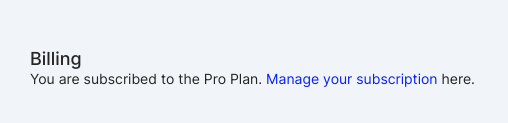
You can switch your subscription between monthly and yearly. On the billing page, click 'Manage your subscription' at the top of the page.

<figure><img src="https://293280464-files.gitbook.io/~/files/v0/b/gitbook-x-prod.appspot.com/o/spaces%2F2TTFJW1M0rT912YzbsRT%2Fuploads%2FYhoK60gVg4nwC0tWvMIu%2Ftallycal.manage.subscription.png?alt=media&amp;token=1226aed3-17f3-42bc-ac4a-5da910b01924" alt=""><figcaption><p>TallyCal Manage Subscription</p></figcaption></figure>

Then click 'Update Plan'. From there, choose monthly or yearly, and click continue.

If you switch from monthly to yearly, your credit card will be charged the additional balance.

If you switch from yearly to monthly, you will have a credit on your account that will be applied to your future billing periods.

<figure><img src="https://293280464-files.gitbook.io/~/files/v0/b/gitbook-x-prod.appspot.com/o/spaces%2F2TTFJW1M0rT912YzbsRT%2Fuploads%2Fc7x7hdTWcmK5osIoqjng%2Ftallycal.switch.subscription.png?alt=media&amp;token=a84d3011-56f1-4ca0-8ee2-e802cdb82b05" alt=""><figcaption><p>TallyCal Switch Subscription</p></figcaption></figure>

**Update Billing Details**

You can update your billing information such as Name, email, phone, address, or credit card.

On the billing page, click 'Manage your subscription' at the top of the page.

To change your credit card, click the edit icon next to your current credit card details.

<figure><img src="https://293280464-files.gitbook.io/~/files/v0/b/gitbook-x-prod.appspot.com/o/spaces%2F2TTFJW1M0rT912YzbsRT%2Fuploads%2Fj9dqAWQvlirJxwriTbX8%2Ftallycal.update.creditcard.png?alt=media&amp;token=0c2823b2-d189-4632-b393-af4b2618ffac" alt=""><figcaption><p>TallyCal Update Credit Card</p></figcaption></figure>

To change your personal information, click the edit icon next to 'Update your information'.

<figure><img src="https://293280464-files.gitbook.io/~/files/v0/b/gitbook-x-prod.appspot.com/o/spaces%2F2TTFJW1M0rT912YzbsRT%2Fuploads%2FPcaCVtwCwvhRiEsQLOEk%2Ftallycal.update.personal.information.png?alt=media&amp;token=fd4896d8-9f07-447e-a468-d05d8b6bf1b4" alt=""><figcaption><p>TallyCal Update Personal Information</p></figcaption></figure>

**Download Invoices**

Receipts will be emailed to you with every payment to TallyCal; however, you can view your invoice history and download specific invoices on the TallyCal billing portal.

On the billing page, click 'Manage your subscription' at the top of the page.

Scroll to the bottom of the Billing portal and click the download icon next to the invoice you want to view.

[^1]: